MCP Server
Connect the ACME API Docs MCP server with your AI agent
This feature has been deprecated and a new version is coming soon.
The Model Context Protocol (MCP) is an open standard that enables applications to share context and tools with Large Language Models (LLMs). By connecting the ACME API documentation MCP server to your AI development tools like Cursor or Claude Desktop, you can give your AI agent direct access to ACME's documentation.
This integration allows your AI agent to:
- Search through ACME's API documentation
- Understand available endpoints and parameters
- Generate code that uses ACME's APIs correctly
- Provide contextually accurate suggestions when working with ACME services
This means instead of manually looking up API details, your AI assistant can reference the documentation directly and help you implement ACME functionality more efficiently.
How to Get Started
Install Node.js
Node.js is required to run the MCP server.
Windows
-
Using the Official Installer (Recommended)
- Visit nodejs.org
- Download the Windows Installer (.msi) for the LTS version
- Run the installer and follow the setup wizard
- The installer will automatically add Node.js to your PATH
-
Using Package Manager (Chocolatey)
choco install nodejs -
Using Package Manager (Winget)
winget install OpenJS.NodeJS
macOS
-
Using the Official Installer
- Visit nodejs.org
- Download the macOS Installer (.pkg) for the LTS version
- Run the installer and follow the setup wizard
-
Using Homebrew (Recommended)
brew install node
Linux
-
Using Package Manager (Ubuntu/Debian)
# Update package index sudo apt update # Install Node.js sudo apt install nodejs npm -
Using Package Manager (CentOS/RHEL/Fedora)
# For CentOS/RHEL sudo yum install nodejs npm # For Fedora sudo dnf install nodejs npm -
Using NodeSource Repository (Recommended)
# Download and run the setup script
curl -fsSL https://deb.nodesource.com/setup_lts.x | sudo -E bash -

# Install Node.js
sudo apt-get install -y nodejs
Verify Installation
After installation, verify that Node.js and npm are installed correctly:
node --version
npm --version
You should see version numbers printed for both commands.
Setup MCP Server Connection
At the command line, run the following command to install the MCP Server connection:
npx mint-mcp add acmeYou should see the following output:
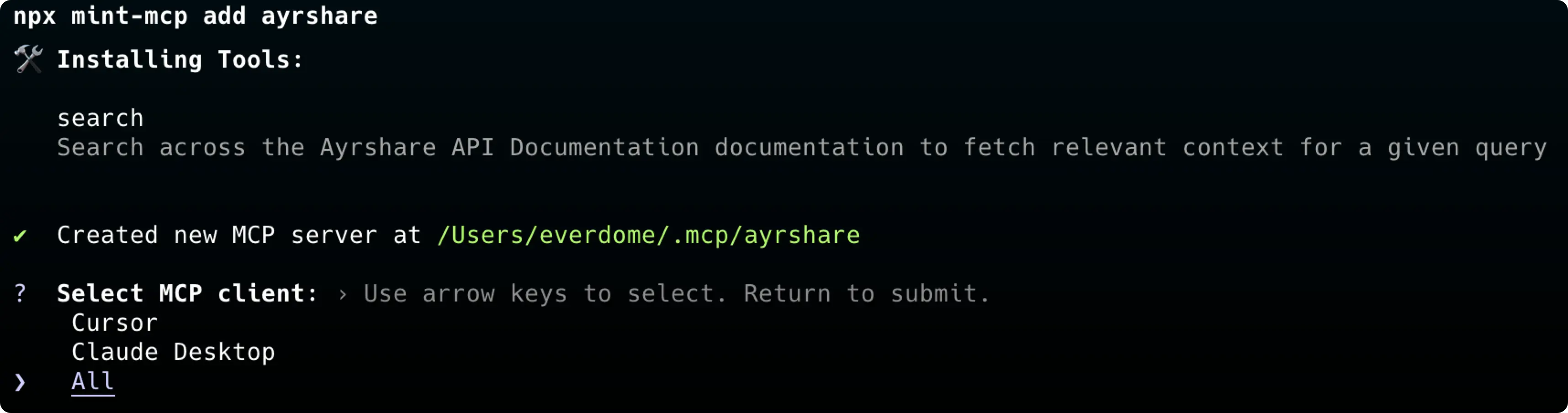
You may choose the apps to install the MCP connector, such as Cursor, Claude Desktop, or All.
Using MCP Server Connection
Restart the app to apply the changes.
In Cursor, you can test the MCP connector by typing How do you publish a post in ACME. Use the MCP server.
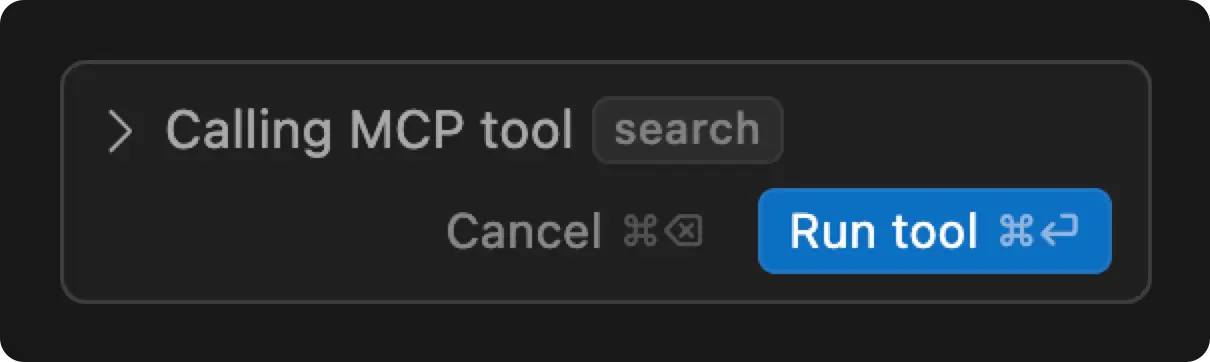
You will see the request to "Run tool" and Cursor will access the MCP server to get the response.