
Resize an Image
Resize an image to social media dimensions, add watermarks, or crop
The social networks have specific requirements for social media images. The resize endpoint allows you to choose a social network compatible image size, add watermarks, change backgrounds, add effects, crop, and more.
By default resizing will change the dimensions of an image, but not crop the image. You may instead crop the image. See below for details.
Header Parameters
AuthorizationstringrequiredBody Parameters
imageUrlstringrequiredURL of image to be resized. Must begin with https://
platformarrayrequiredSocial media platform for which the URL will be resized. See platform options for details.
fileobjectSend the media file as a multipart form-data object. Required if imageUrl not present.
watermarkobjectURL and optional position of watermark to be applied to resized image. The watermark will appear in the lower right corner of the image by default. See watermark for details.
effectsstringChange opacity, colors, etc. See effects options for details.
dimensionsobjectObject specifying width and height for resizing. If cropping, you may optionally specify the center x and y coordinates.
Default is the center of the image.
{
  "width": 500,
  "height": 500,
  "xCoordinate": 35, // optional for crop mode
  "yCoordinate": 50 // optional for crop mode
}modestringdefault: resizeValue: resize, blur, or crop. See mode for details.
convertToJpgbooleanAutomatically convert to a JPG file, such as from a PNG to a JPG file. 75% quality will be used. See convert to a JPG for details.
convertToWebPbooleanAutomatically convert to a WebP file, such as from a PNG to a WebP file. 75% quality will be used. See convert to a WebP for details.
Platform Options
Specify a platform as a String to use predefined dimensions of the image, or you may specify your own with the dimensions field.
For example "platform": "facebook" will set the dimension of the image as width 1200px and height 630px.
facebook: 1200px width, 630px height.instagram: 1080px width, 1080px height.instagram_landscape: 1080px width, 680px height.instagram_portrait: 1080px width, 1920px height.instagram_special: 1080px width, 800px height.linkedin: 1200px width, 627px height.pinterest: 1080px width, 1920px height.tiktok: 1080px width, 1920px height.twitter: 1600px width, 900px height.
Note, that resize to these dimensions will not crop the image.
If you want to crop the image, you can use the mode parameter set to crop with the dimensions and xCoordinate and yCoordinate fields.
Mode
Resize
Resize is the default mode that will change the dimensions of an image while maintaining its aspect ratio. Resize the image to the specified dimensions without cropping any content.
Example JSON:
{
  "mediaUrl": "https://img.acme.com/012/gb.jpg",
  "platform": "instagram",
  "mode": "resize"
}
You can also specify custom dimensions using the dimensions field:
{
  "mediaUrl": "https://img.acme.com/012/gb.jpg",
  "mode": "resize",
  "dimensions": {
    "width": 800,
    "height": 600
  }
}
Either the platform or the dimensions field width and height must be specified.
Crop
Crop will cut off "crop" the image to the specified dimensions. By default the center coordinate will be the center of the image. You may also specify your own x/y coordinates.
Example JSON:
{
  "mediaUrl": "https://img.acme.com/012/gb.jpg",
  "platform": "instagram",
  "mode": "crop"
}
You can also specify custom dimensions and optional crop coordinates using the dimensions field:
{
  "mediaUrl": "https://img.acme.com/012/gb.jpg",
  "mode": "crop",
  "dimensions": {
    "width": 1080,
    "height": 1080,
    "xCoordinate": 35,
    "yCoordinate": 50
  }
}
Either the platform or the dimensions field width and height must be specified.
For square crops, if width or height are less than the dimensions of the provided image, the small of the width or height will be used. For example, if the image is 1200x800 and the crop requested is 1080x1080, the image returned will be 800x800.
Blur
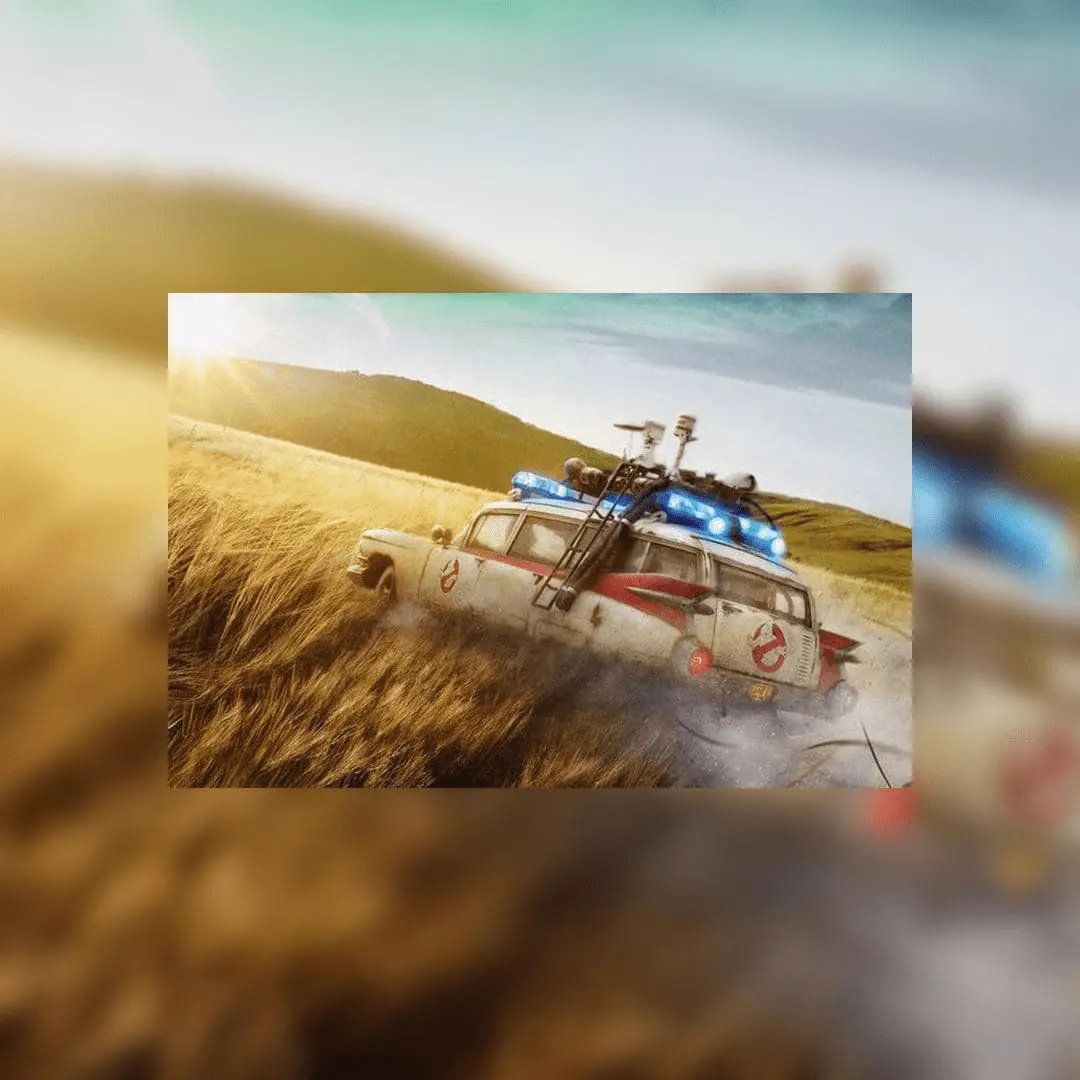
Blur effect will duplicate the image as a background and blur the image.
Example blur JSON:
{
  "mediaUrl": "https://img.acme.com/012/gb.jpg",
  "platform": "instagram",
  "mode": "blur"
}
Example blur image:
Watermark
Watermark Overview
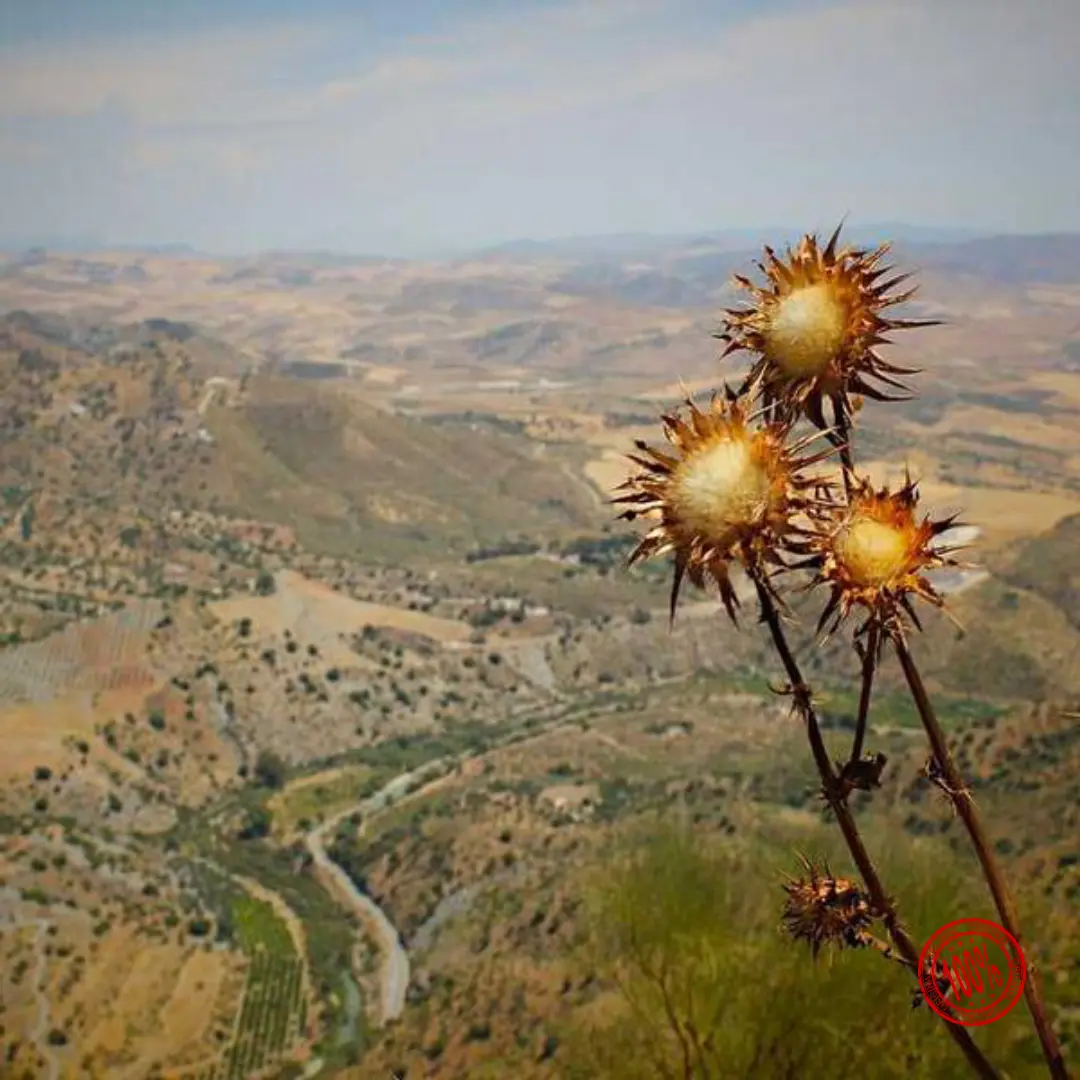
You may add a watermark to the image by providing a URL, which must begin with https:// and an optional position.
The watermark will by default appear in the bottom right corner of the image - southeast.
We recommend a PNG with a transparent background.
Example watermark JSON:
{
  "mediaUrl": "https://img.acme.com/random/photo-13.jpg",
  "platform": "instagram",
  "watermark": {
    "url": "https://img.acme.com/012/100-percent.png",
    "position": "northeast" // optional
  }
}
Example watermark image in southeast position:
Watermark Position
The position of the watermark can be one of the following:
northnortheasteastsoutheastsouthsouthwestwestnorthwestcenter
Effects Options
Color Hexadecimal
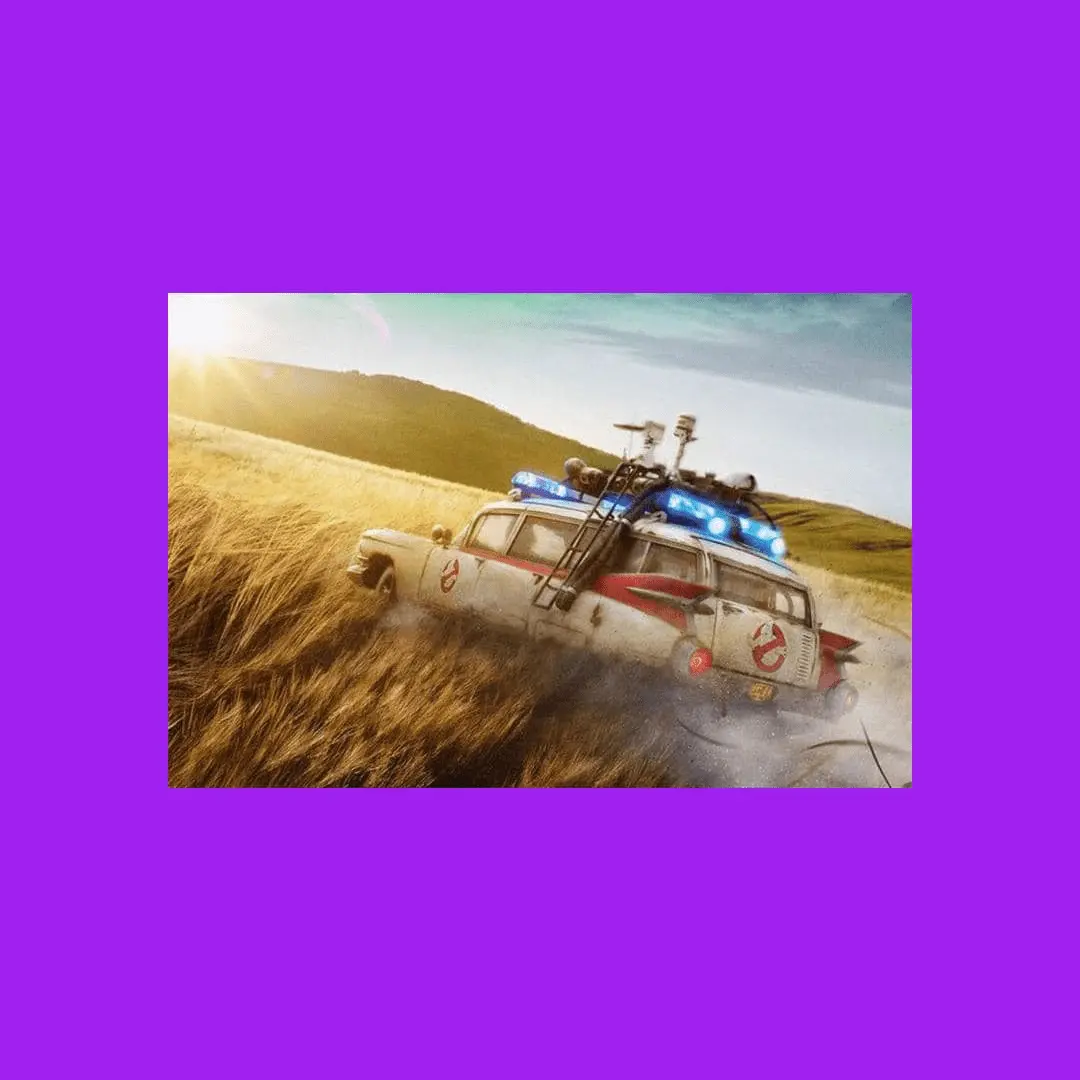
Hexadecimal value for color of background for blur. Only applicable if "mode": "blur". String value, e.g. "#A020F0"
Example color background JSON:
{
  "mediaUrl": "https://img.acme.com/012/gb.jpg",
  "platform": "instagram",
  "mode": "blur",
  "effects": {
    "color": "#A020F0"
  }
}
Example color background image:
Color: Grayscale, Sepia, Invert
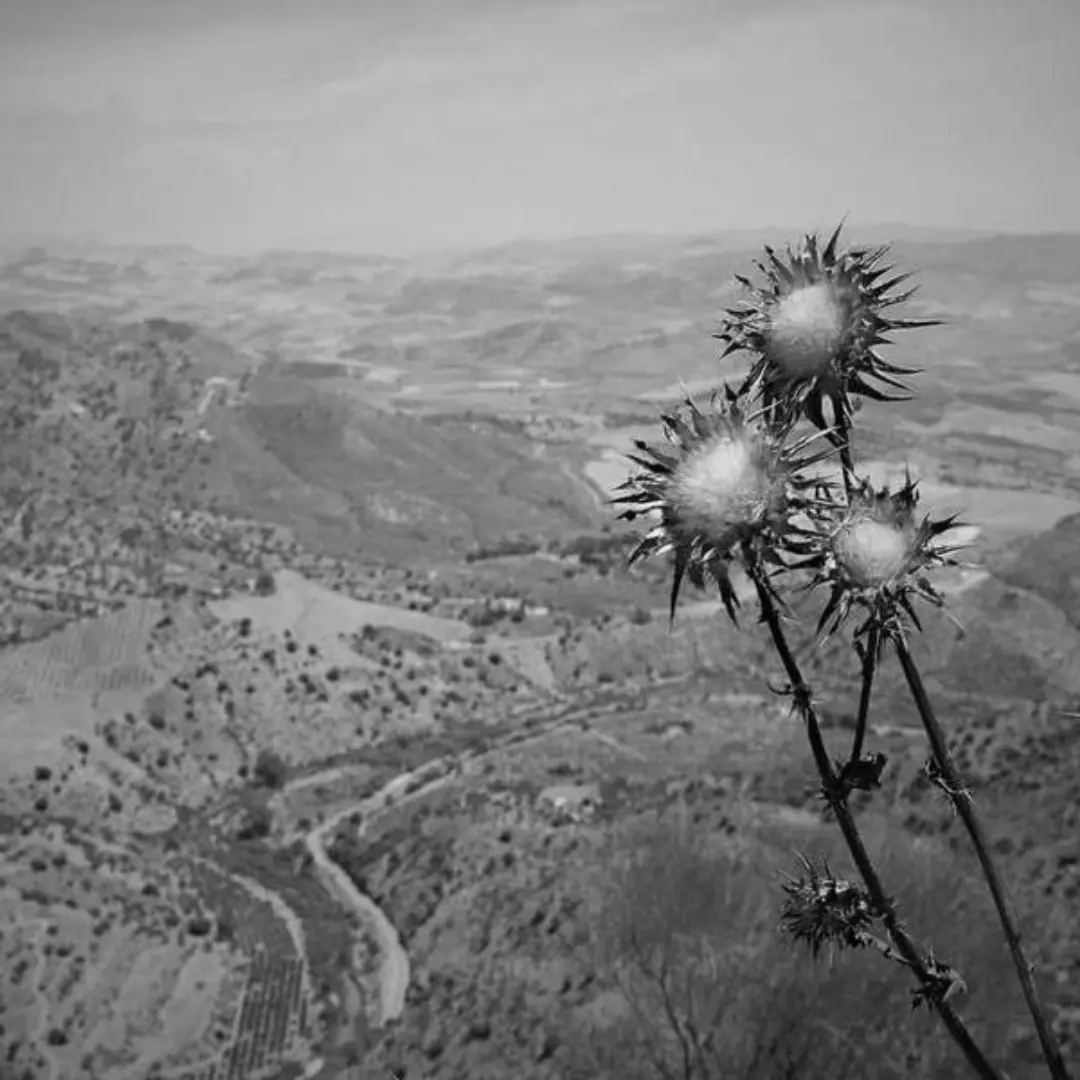
You made change the primary image color by specifying grayscale, sepia, or invert. The field "blur": true is not required and should not be used if you do not want a background.
Example grayscale JSON:
{
  "mediaUrl": "https://img.acme.com/random/photo-13.jpg",
  "platform": "instagram",
  "effects": {
    "color": "grayscale"
  }
}
Example grayscale image:
Opacity
Set the opacity of the image. Number value range: 0 - 1.
Example opacity JSON:
{
  "effects": {
    "opacity": 0.2
  }
}
Quality
For JPG or JEPG images specify the quality, or amount of compression, of the image. The lower the number the more compressed, but lower the image quality. The higher the number the less compressed, but the higher the image quality. Number value range: 0 - 100.
Example quality JSON:
{
  "effects": {
    "quality": 20
  }
}
Convert to a JPG or WebP
The convertToJpg and convertToWebP options allow you to transform images from their original format (such as PNG) to JPG or WebP format respectively.
By default, the converted images will have a quality setting of 75%.
You can customize the compression level by using the quality parameter in the effects object.
Note that if your source image is already a JPG and you use convertToJpg, the API will simply resize the image to your specified dimensions without changing the format.
Example convert to JPG:
{
  "convertToJpg": true
}
Example convert to WebP:
{
  "convertToWebP": true
} curl \
-H "Authorization: Bearer API_KEY" \
-H 'Content-Type: application/json' \
-d '{"mediaUrl": "https://img.acme.com/012/gb.jpg", "platform": "instagram"' \
-X POST https://api.acme.com/api/media/resize{
"status": "success",
"url": "https://media.acme.com/9abf1426d6ce9122ef11c72bd62e59807c5cc083/8UbyBjHTxgHkAC1I37e6O.jpg",
"platform": "instagram",
"mode": "blur",
"effects": {
"color": "#A020F0"
}
}