LinkedIn Linking
Authorizing LinkedIn with ACME
How to Link LinkedIn with ACME
You can link either your LinkedIn company page or personal LinkedIn account. When authorizing LinkedIn with ACME, you will be redirected to LinkedIn to login and authorize ACME to access your LinkedIn account.
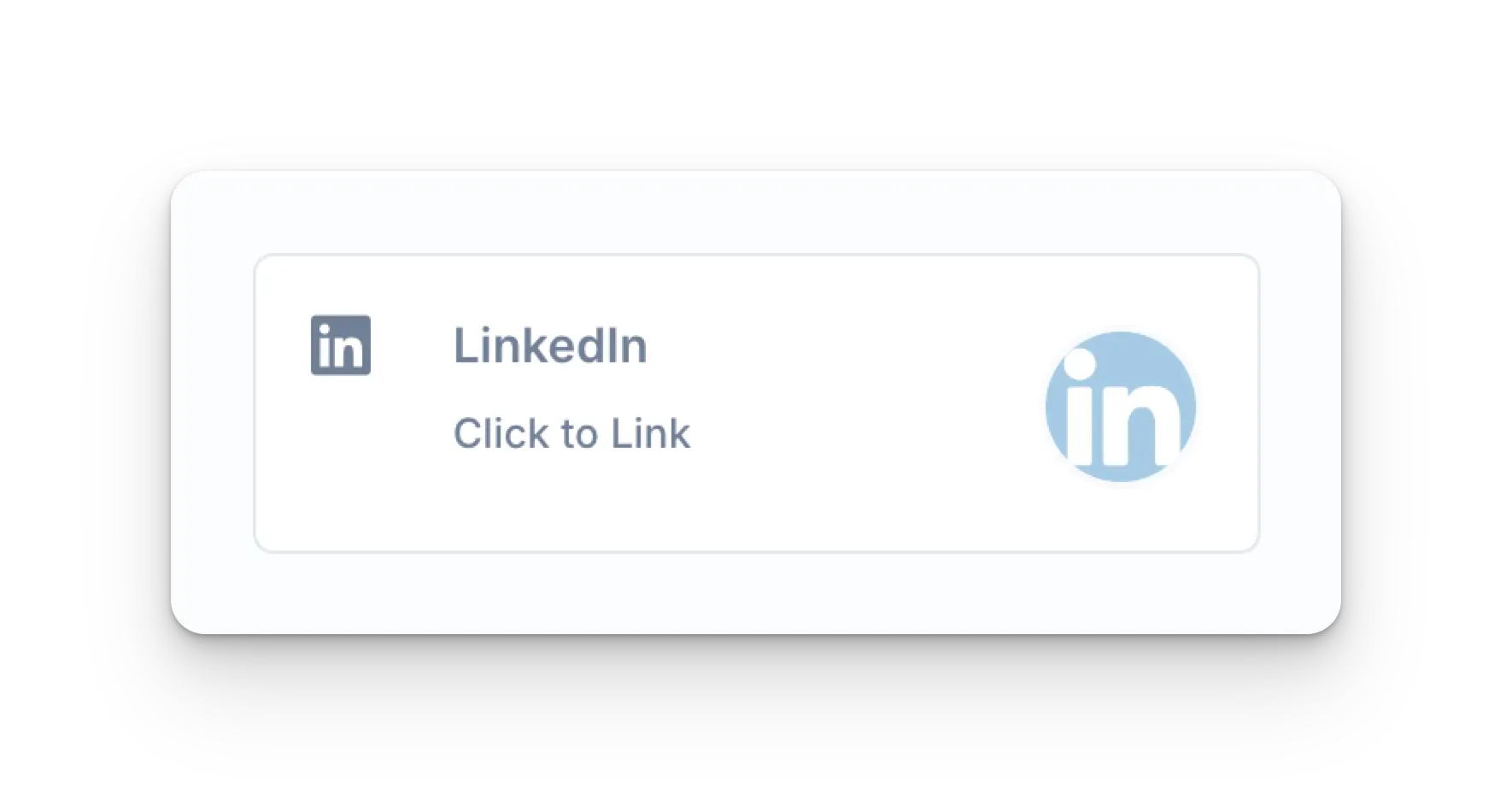
Click the LinkedIn icon on the Social Accounts page.
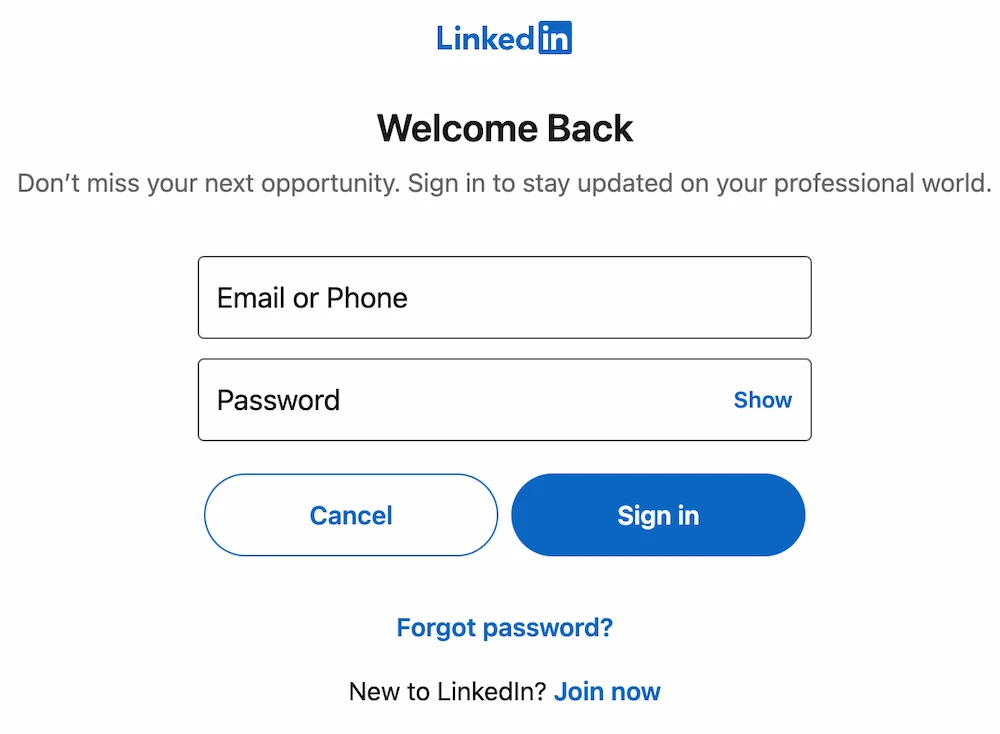
The page will be redirected to LinkedIn and request you to login to your LinkedIn account. If you have previously authorized ACME with LinkedIn, this step may be skipped.
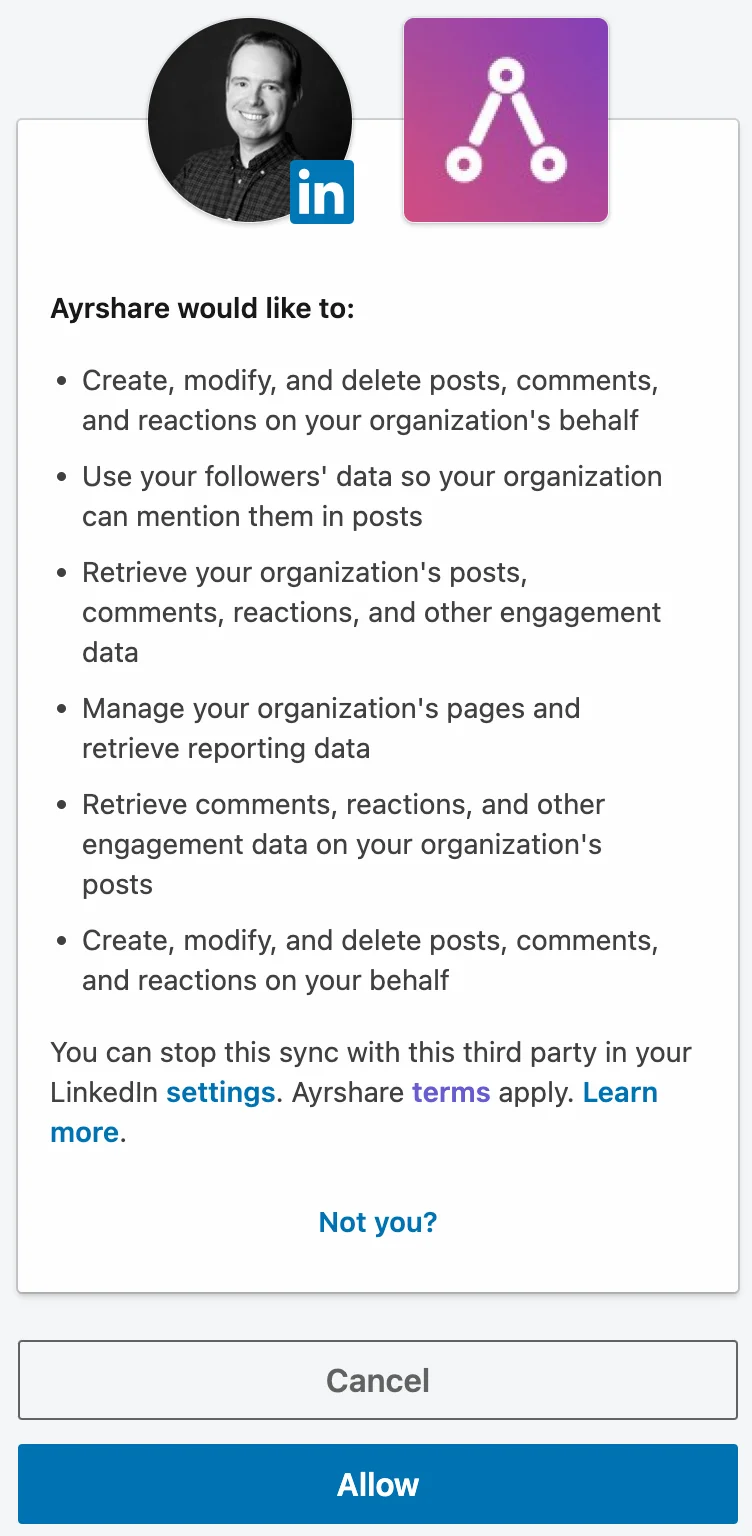
Accept the authorization permissions ACME is requesting.
You will be redirected back to ACME where you can select the LinkedIn account type you wish to link with ACME. You may either choose a LinkedIn company page or your personal LinkedIn account.
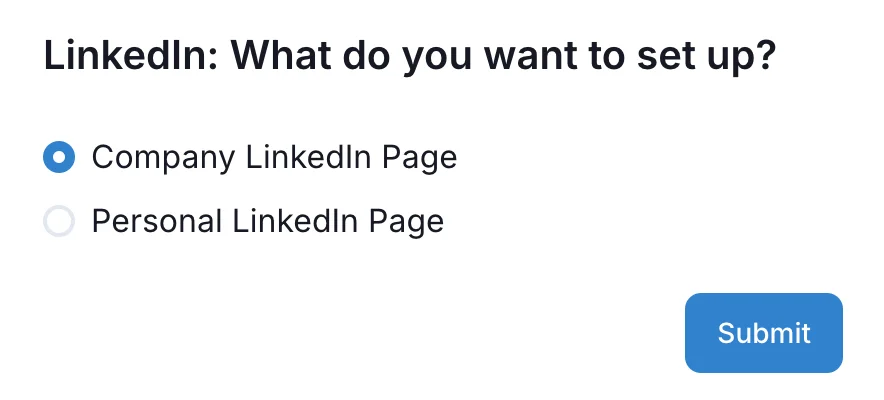
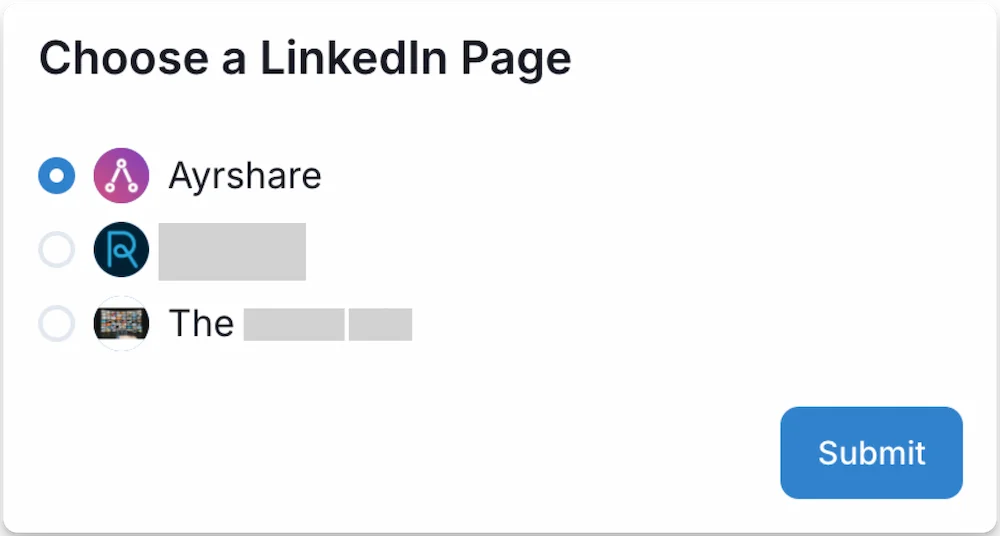
If you chose "Company Page", you will see a list of company pages you can select from. Remember, the LinkedIn user must be a Super Admin or Content Admin of the company page to link it with ACME.
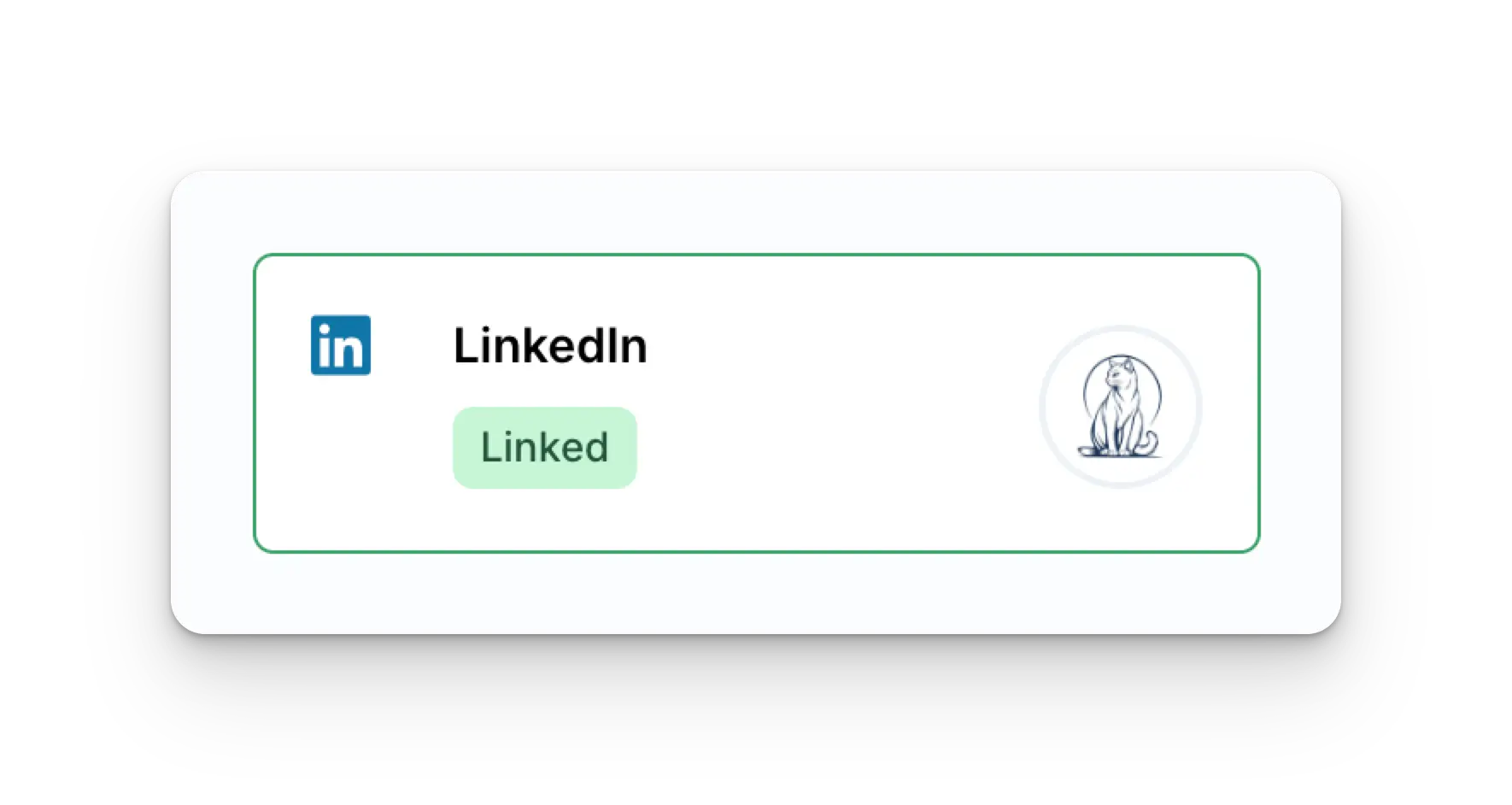
Your Social Accounts page will now be updated with your LinkedIn account.
LinkedIn Troubleshooting
The most common error you may encounter is a company page not showing in the list of available companies. This can be caused by the LinkedIn user not being a Super Admin or Content Admin of the company page and can be fixed by a Super Admin of the company page updating the user's page role.
LinkedIn Link Expiration
LinkedIn must be re-linked every 365 days. Please see the user endpoint for getting the refresh required date and days remaining.
Additional LinkedIn Information
- Please see here for details on posting to LinkedIn, getting analytics, managing comments, or retrieving history.
- For more information on recommended image sizes, please see: