Instagram Linking
Authorizing Instagram with ACME
How to Link Instagram
The following is a guide for linking Instagram. There are two ways to link Instagram:
Option 1 is the default option. If option 2 is preferred, in the dashboard settings, disable Instagram Login to use the authentication flow that requires a Facebook Page to be associated with the Instagram account.
Instagram does not support Personal Facebook accounts, Creator Studio accounts, and publishing to IGTV.
See below for details.
Linking Instagram Directly
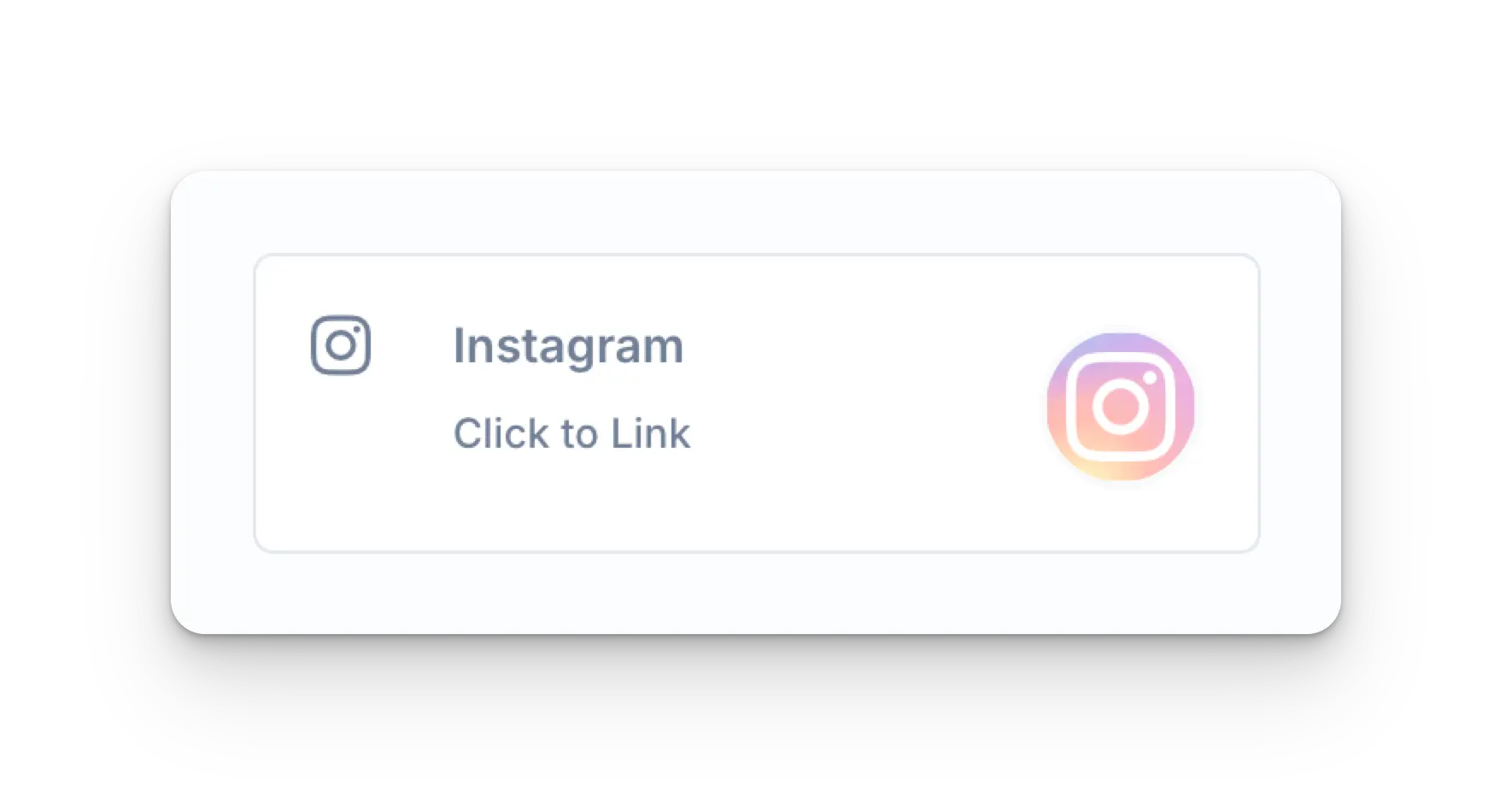
Click the Instagram icon on the Social Accounts page.
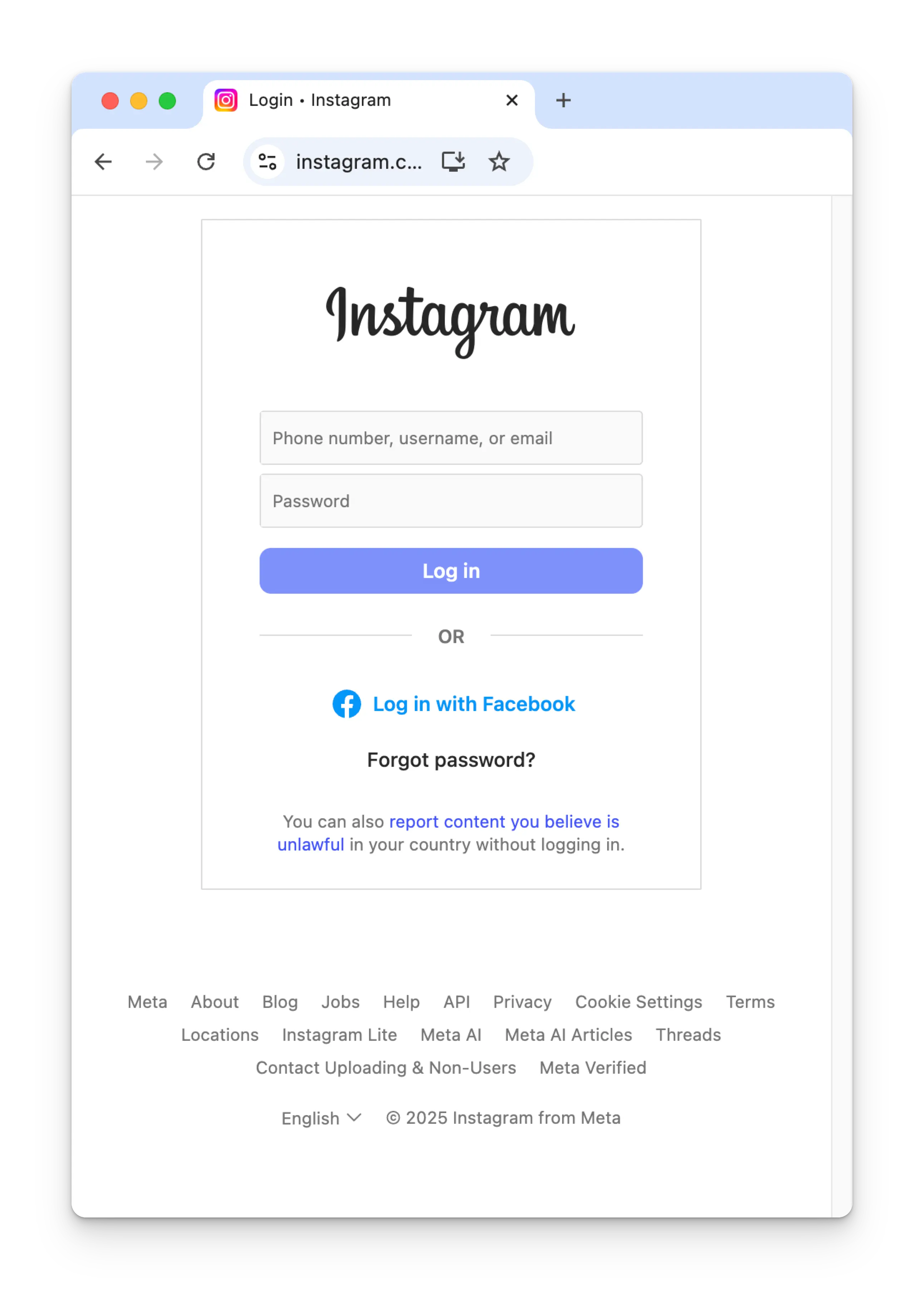
Input your credentials and click Log in.
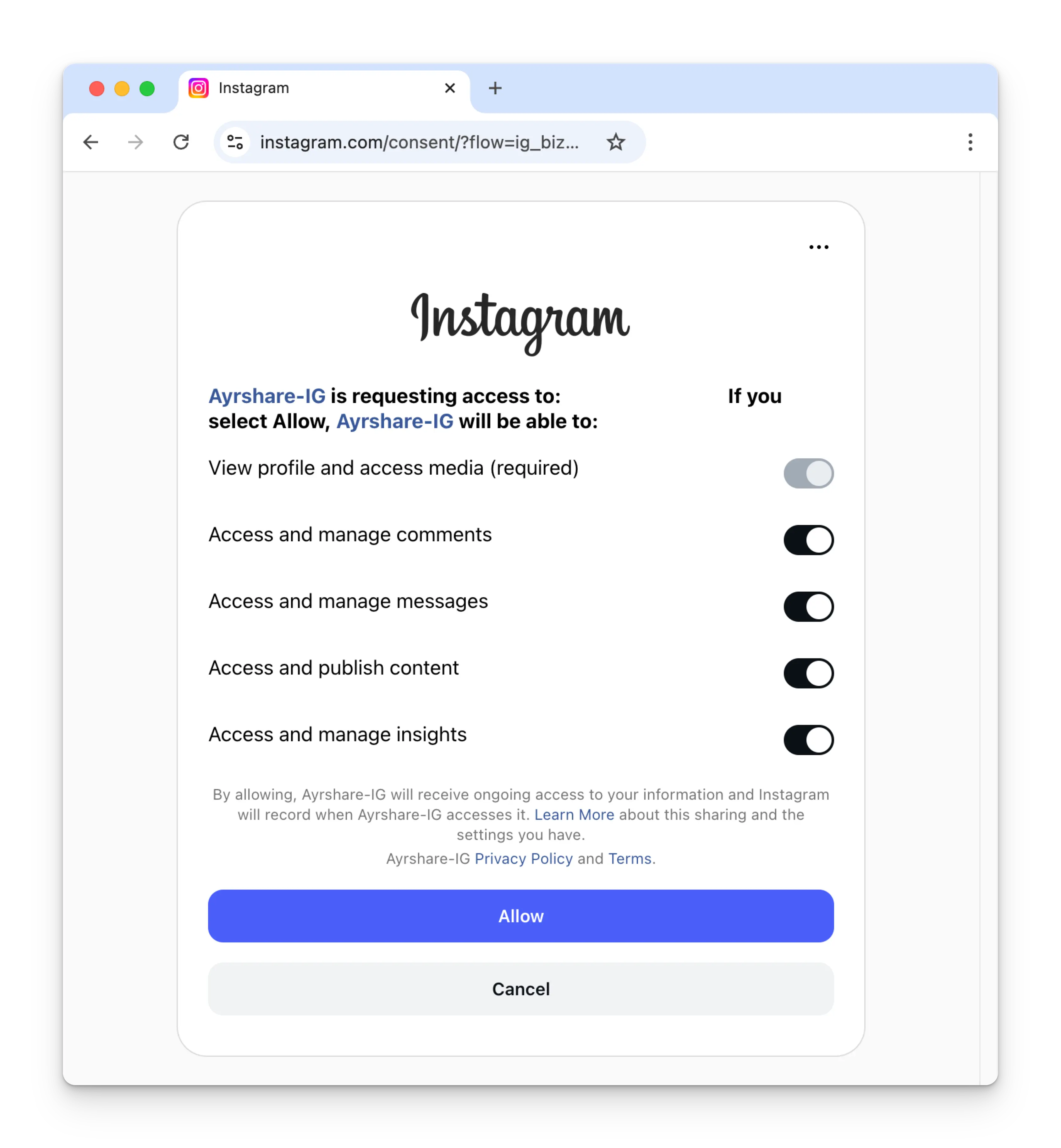
Toggle on all permissions for Instagram and click Allow.
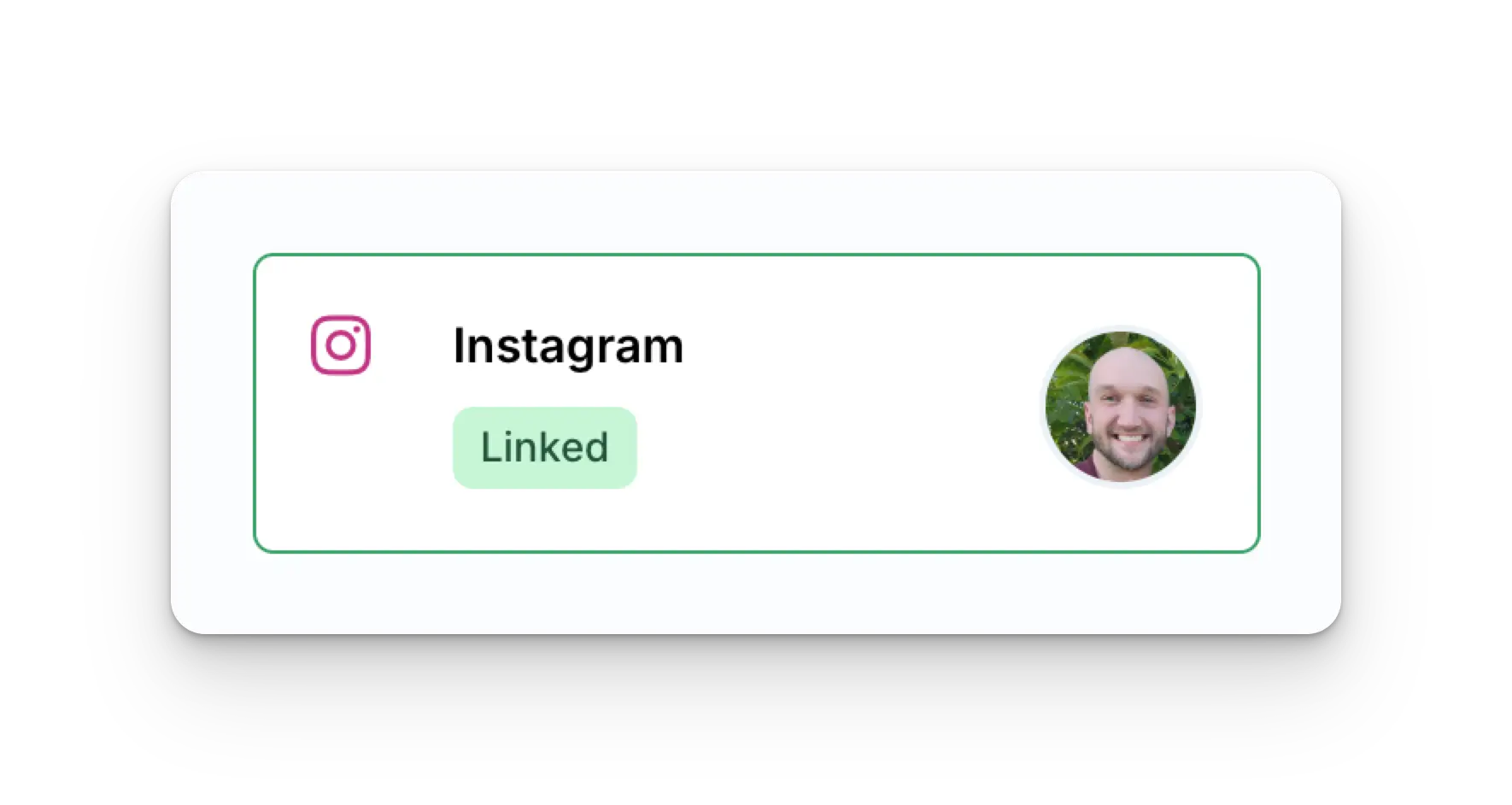
Your Social Accounts page will now be updated with your Instagram account.
Linking Instagram through Facebook (Facebook Page required)
Please be sure you are the admin of Facebook Page and grant all permissions to Pages, Instagram accounts, and selections. Failure to do so might prevent successful posting.
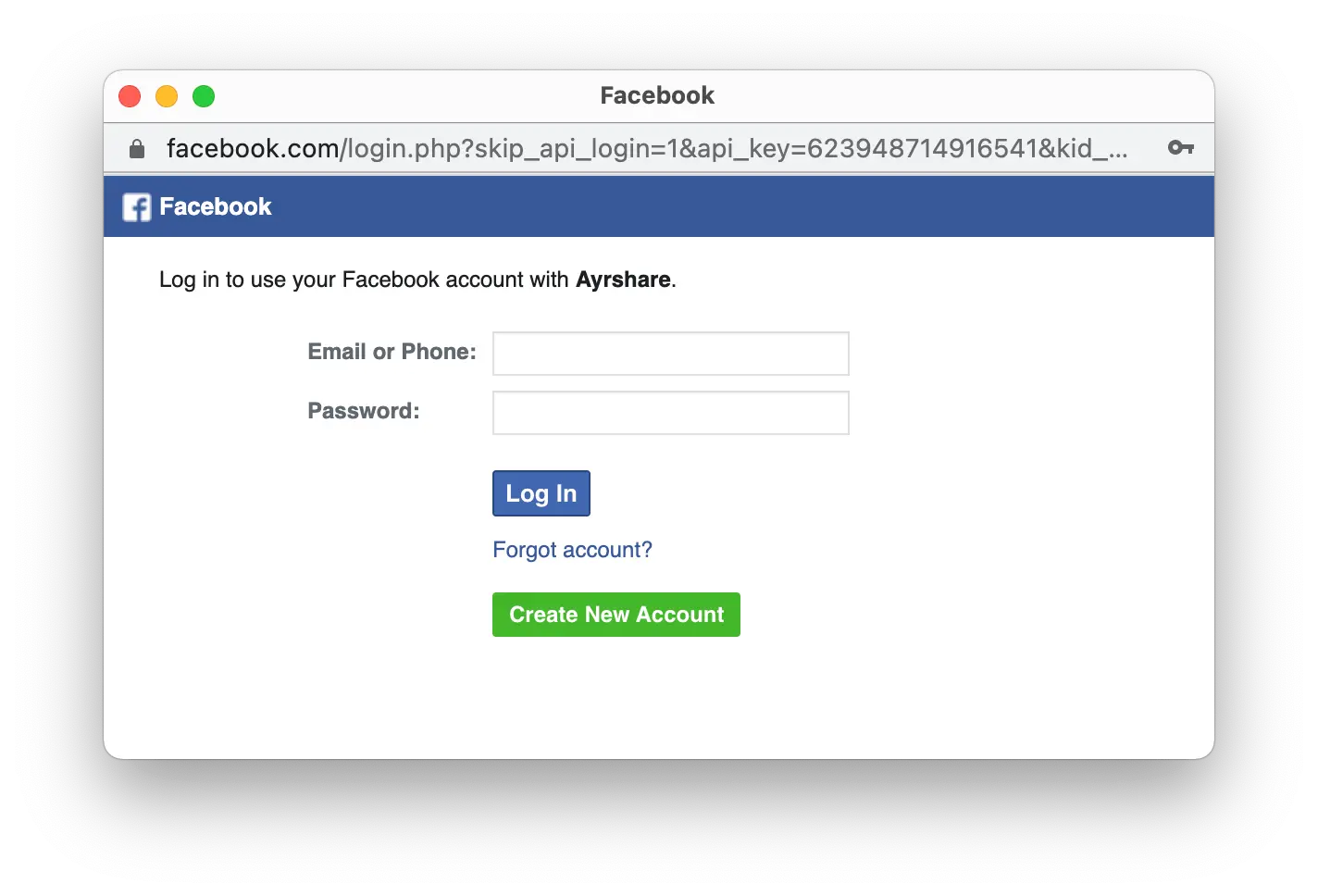
This Instagram linking process authenticates through Facebook, so when you click the Instagram icon on the Social Accounts page, a Facebook sign-in will pop-up - please be sure you allow pop-ups.
Click the Instagram icon on the Social Accounts page.
The first time you link Instagram, you will be asked to authenticate through Facebook.
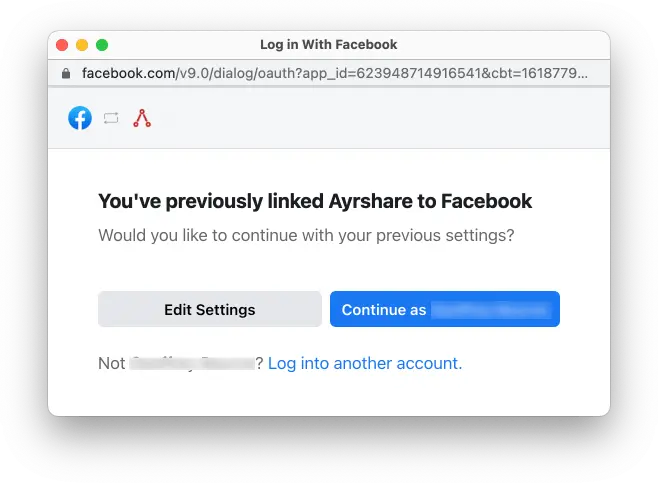
If you have previously connected ACME with Facebook and don't see this image, skip to step 3.
Click Edit Settings during the initial set up.
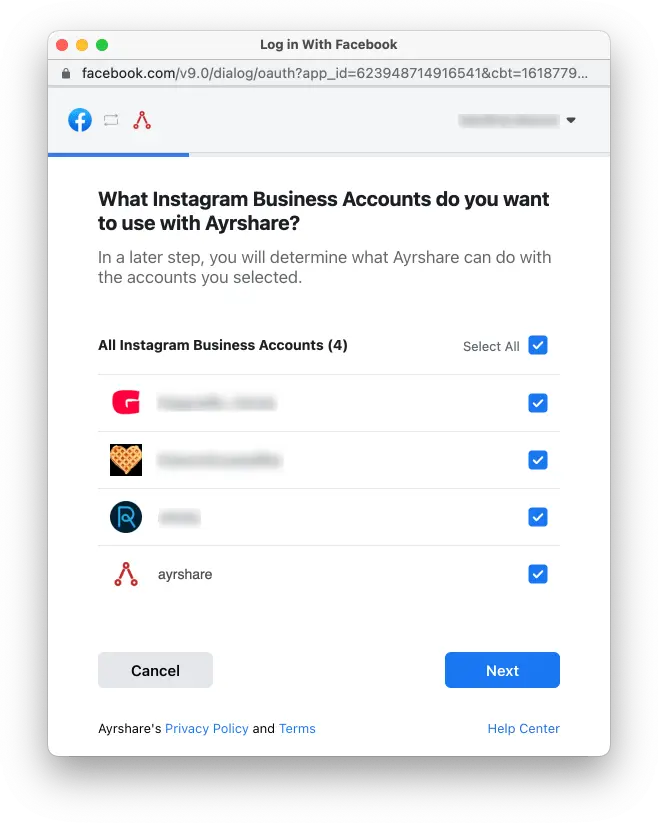
Check all the Instagram Business Accounts or Instagram Creator Accounts. Click Next.
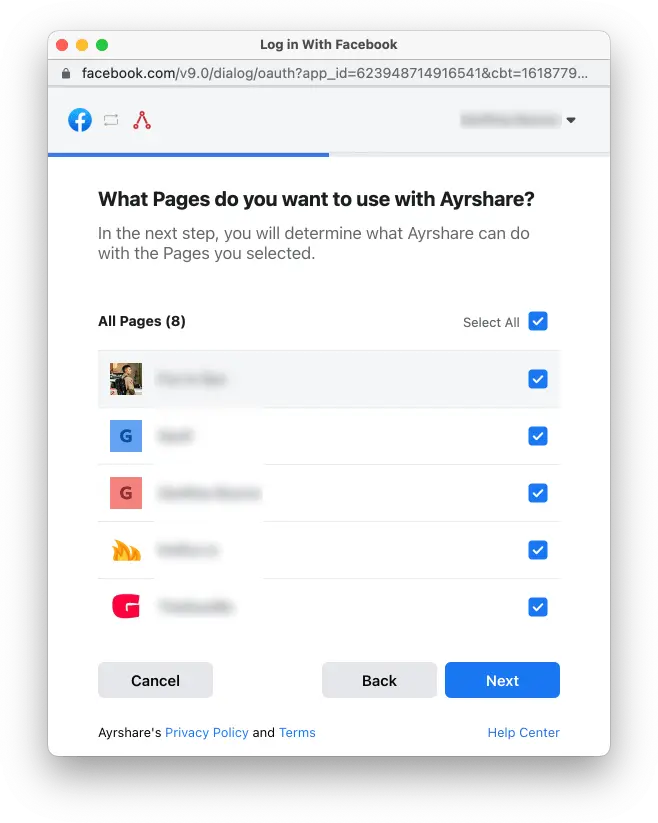
Check all Facebook Pages. Click Next.
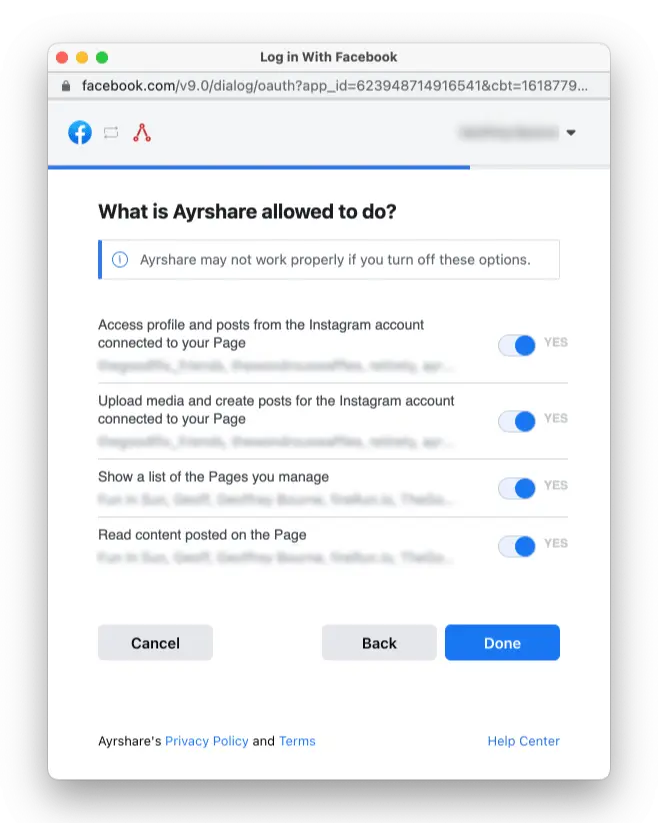
Turn all permissions to Yes. Click Done. You will then be asked to select a specific Instagram account to link with ACME. Once selected your link will be complete and you can start posting to Instagram.
Your Social Accounts page will now be updated with your Instagram account.
Enabling an Instagram Business or Creator Account
Instagram requires that your account be an Instagram Business or Instagram Creator account.
Learn more about Instagram Business and Creator accounts.
Switching from a Personal to Business or Creator Account
If you have a personal Instagram account, open up the Instagram mobile app:
Go to your profile and tap the menu icon ≡ in the upper right corner to go to the Settings and activity page.
- Scroll down to the For professionals section.
- Click Account type and tools.
- Tap Switch to professional account.
Go through the steps to set up your account and select with Creator or Business.
Switching from a Business to Creator or Vice Versa
If you want to switch from a Business account to a Creator account or vice versa:
Go to your profile and tap the menu icon ≡ in the upper right corner to go to the Settings and activity page.
- Scroll down to the For professionals section.
- Click Creator (or Business) tools and controls.
- Scroll down and tap Switch account type.
- Choose to switch to Creator or Business.
If you do have a Business or Creator account, but when linking ACME you receive an error saying your account isn't a Creator or Business, try switching your Instagram back to Personal and then back to Creator or Business. This often resets the account type and allows you to link ACME.
Connect a Facebook Page to Instagram
If you already have an Instagram Business or Creator Account and want to connect a Facebook Page, see detailed instructions.
Or if you want to create a new Facebook Page.
You can check if you have an Instagram Account linked with your Facebook Page:
- Log into Facebook on your desktop www.facebook.com.
- Navigate to one of your Facebook pages you are an admin. This will be the one you want to link with an Instagram account.
- On the left-hand panel under "Manage Page" click "Settings". It usually is at the bottom.
- Under Page Settings click "Instagram".
The top title will say "Connected Instagram Account" if one is connected. Otherwise you will be able to connect one.

Troubleshooting Instagram
If you're having issues with Instagram please see the troubleshooting guide.
Additional Instagram Information
Instagram has very strict requirements on image sizes. Images must have a width of at least 1080 pixels with an aspect ratio between 1.91:1 and 4:5.
ACME will detect if your image size is not correct and respond with an error.
- Please see here for details on posting to Instagram, getting analytics, managing comments, or retrieving history.
- For more information on recommended image sizes, please see: