YouTube Linking
Authorizing YouTube with ACME
How to Link a YouTube Channel with ACME
You can link a YouTube channel with ACME. When authorizing YouTube with ACME, you will be redirected to Google to login, authorize ACME, and select a YouTube channel. Please be sure your Google account permissioned to manage the YouTube channel you want to connect and the channel is public.
If you're having issues linking your YouTube channel, please see the YouTube channel permissions guide for more information.
YouTube does not support Service Accounts. Service accounts do not work for YouTube Data API calls because service accounts require an associated YouTube channel, and you cannot associate new or existing channels with service accounts.
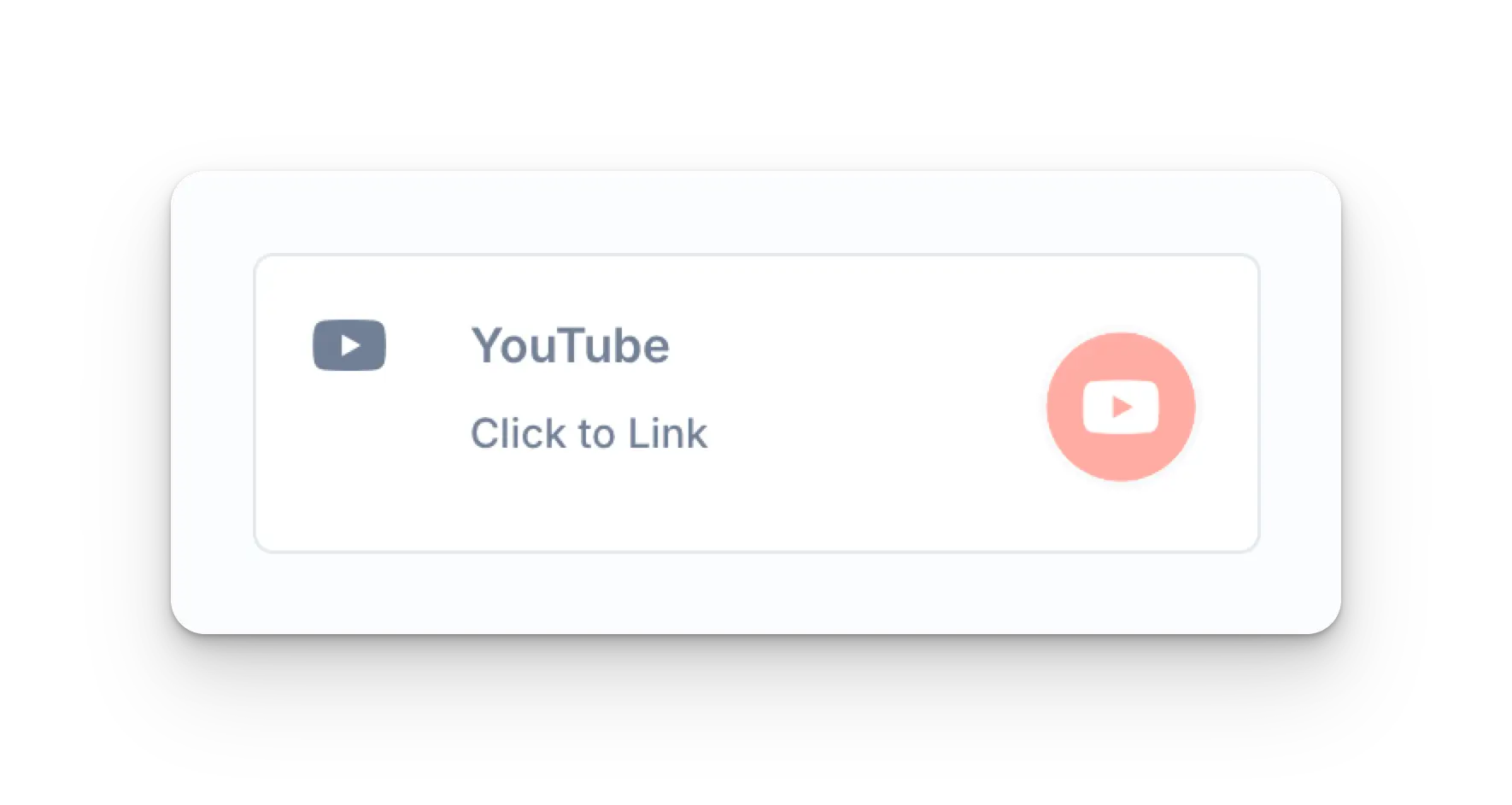
Click the YouTube icon on the ACME Social Account linking page.
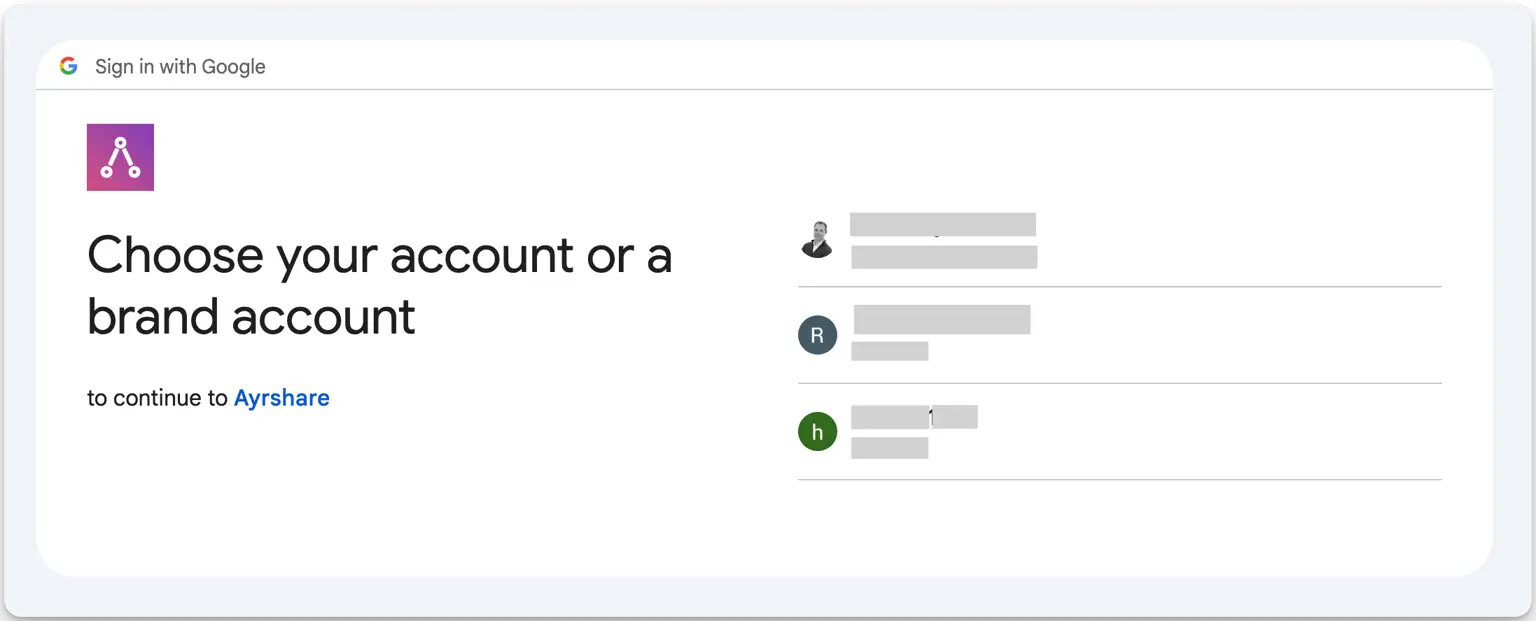
The page will be redirected to either a Google login page or a list of currently logged in Google accounts.
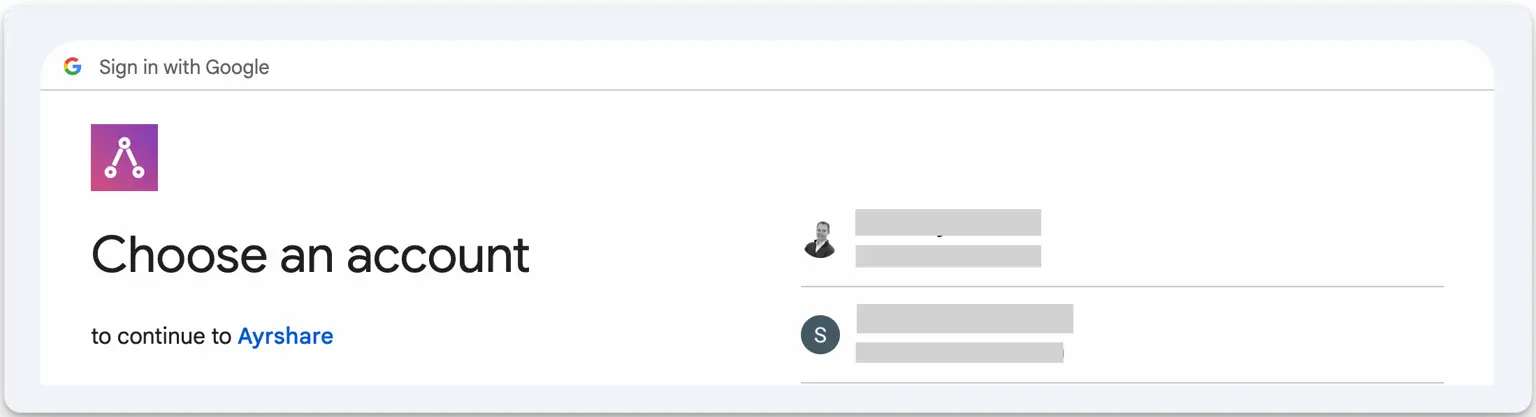
Select a Google account that is associated with the YouTube channel you want to connect.
You may then see one or two screens requesting permissions. Click Continue on each screen.
Once complete you will be returned to the ACME social linking page.
Your Social Accounts page will now be updated with your YouTube account.
Troubleshooting YouTube Linking
YouTube posting requires your YouTube account to have at least one Channel and be an owner on the Channel. To create a YouTube Channel, click on your profile in the YouTube Dashboard and choose "Create a Channel". You may also use this direct link to create a YouTube Channel if one does not exist: http://m.youtube.com/create_channel
If you're having issues viewing YouTube channels please see the troubleshooting guide.
Additional YouTube Information
- Please see here for details on posting to YouTube, getting analytics, managing comments, or retrieving history.
- For more information on recommended image sizes, please see: